Table Mate cares about the security of your account and data thus, we use multi-factor authentication to verify your sign in.
You will receive a six-digit verification code to your email or alternatively, you can setup your account with Google Authenticator to retrieve authentication codes.
The authentication process only occurs once you have entered your username and password and have previously turned on multi-factor authentication for your account.
Sign-ins using social accounts (Facebook, Google) will not require verification as those platforms utilize industry standard mechanisms to verify your sign in in-place.
Enable/Disable Multi-Factor Authentication
- Login to your Table Mate account and once on the home page go to Settings --> Multi-Factor Authentication.
- You will see the screen below showing whether your account authentication is enabled or disabled.

Multi-Factor Authentication Settings Screen
Authentication via Email
- Sign in to your Table Mate account using your username and password.
- You will be requested to enter the six-digit code which would have been sent to the email address associated with your Table Mate account.
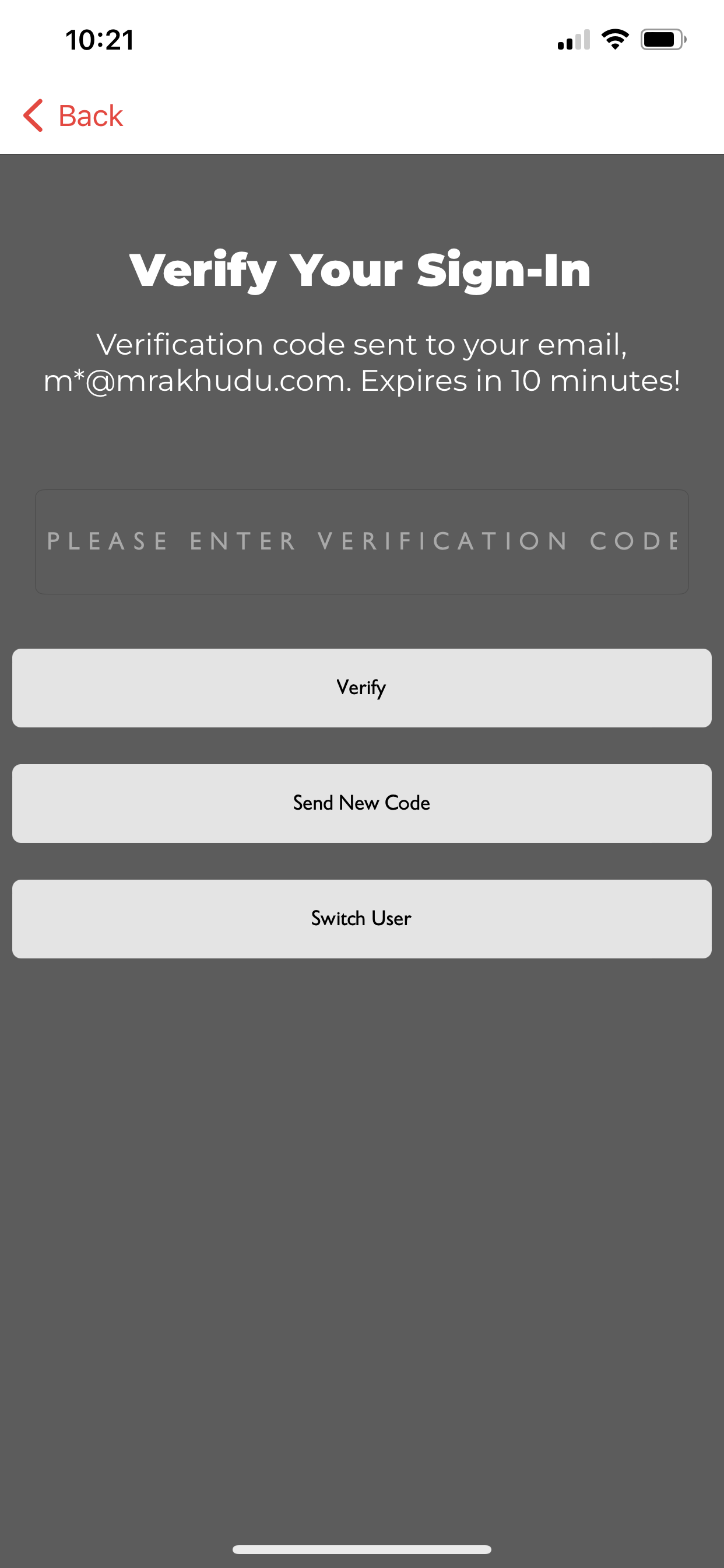
Table Mate Multi-Factor Authentication Screen after entering correct credentials.
- Once you've retrieved the code in your email, please enter it on the screen shown above and click on the "Verify" button.
Note. This code is only valid for 10 minutes thus ensure you enter it within that period. If your code expires, you can click on the "Send New Code" button and you will receive a new code to authenticate your sign-in.
Authentication via Google Authenticator
- You can also verify your account using a code generated from your Google Authenticator application. If you do not already have it installed on your phone, download it from your respective app store, Google Play (Android), App Store (iOS).
- Once the application is installed, login with your Google Account.
- After logging in you have two options to add your Table Mate Account to your Authenticator app: using a QR code or using a setup key.
Using QR Code:
4. Once you have captured the QR code on separate device, open your Google Authenticator application and press the plus button at the bottom right as shown in the screenshot below:
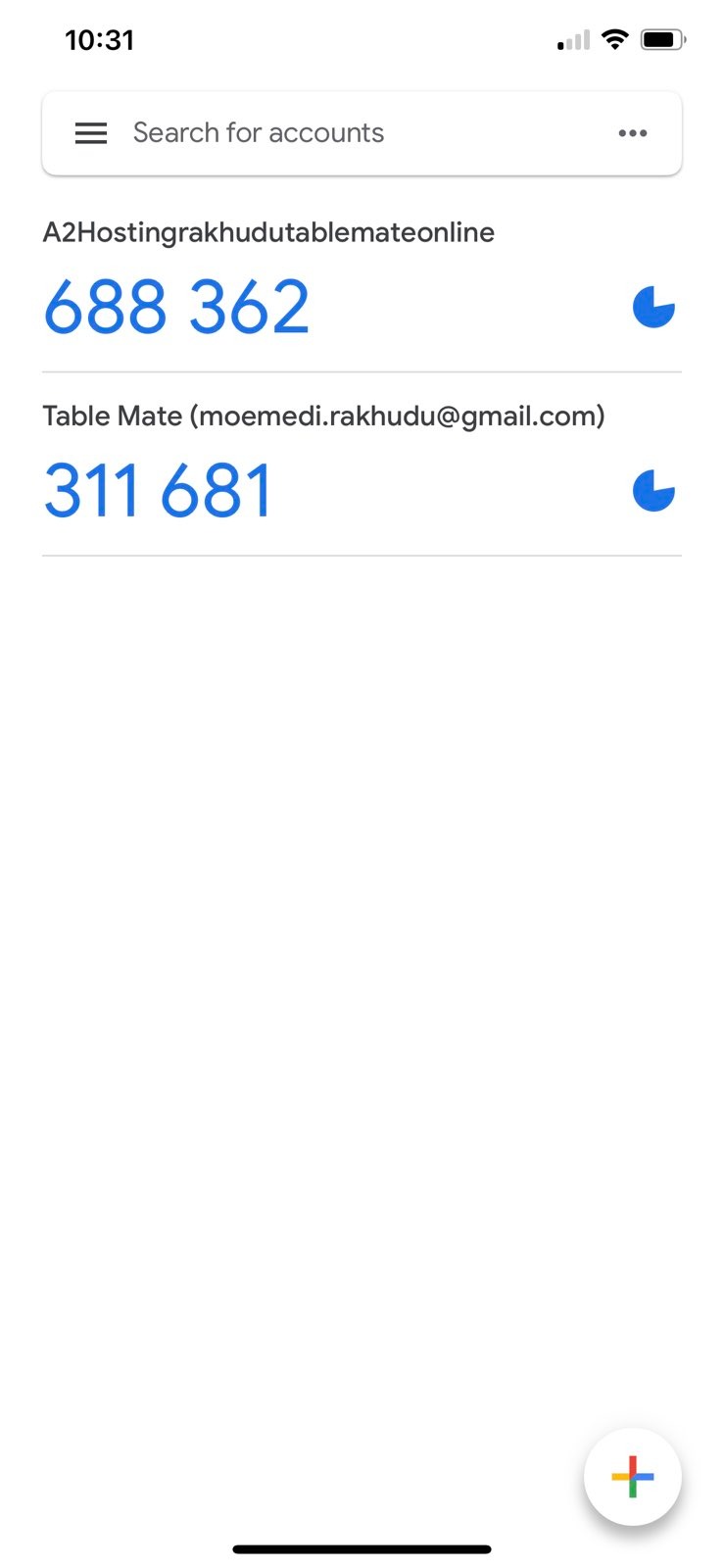
5. You will now have the option to 'Scan a QR code' or 'Enter a setup key', select 'Scan a QR Code'.
6. Your camera app will open, and now simply point it to the retrieved Table Mate Account QR Code from the prior steps.
That's it! Your Google Authenticator app will now be registered to produce Table Mate login verification codes which expire every minute. When prompted for a code on your Table Mate app, just open your Authenticator app then enter the code under "Table Mate (*your Table Mate username*)" click on "Verify" button then your sign-in will be authenticated.
Using Setup Key:
**Not available. Development will be considered for future.**
For any questions/concerns please feel free to contact Table Mate Support - Contact Us
Comments